Scantron Scoring

Testing & Evaluation Services supports faculty with Scantron-based testing by providing Scantron form distribution, reporting tools, and exam analytics. Instructors can submit Scantron-based exams for processing, receive electronic scoring reports, and use DigitalDesk InstructorTools to review results, generate reports, apply grading adjustments, and upload scores directly to Canvas.

Exam Administration Instructions

Open All Tabs
  • 1.  Obtain Scantron Forms

    Testing & Evaluation Services manages the supply of Scantron bubble sheets used for exams. Before purchasing new bubble sheets, faculty should check with their department to determine whether they are already available. Additional bubble sheets can be purchased by sending a completed order form to testeval@miami.edu. Sheets are sold at $34 per ream, and each ream contains 500 forms.

  • 2.  Administer Your Exam

    If you have sufficient Scantron forms, you may administer your exam and prepare an answer key for scoring using a separate Scantron bubble sheet. Before administering your exam, please communicate the following instructions to your students before testing. Failure to follow these requirements may result in processing delays or prevent a student's exam from being scored.

    • Use a No. 2 pencil when completing the answer sheet. Pens cannot be processed by the scanning system.
    • Print and bubble your name on the top left-hand side of the answer sheet.
    • Print and bubble in your student ID number, including the letter C, on the bottom left-hand side of the answer sheet.
    • If multiple exam versions are used, print and bubble the correct form number.
    • Bubble in answer choices completely and erase any stray marks.
    • Do not write, draw, fold, staple, or make marks outside the designated response and identification areas.


    For a comprehensive guide and answer key sample, please review the resources below.

  • 3.  Submitting Exams for Scoring

    After the exam has been administered, prepare your materials for submission in a manila envelope and deliver them to Testing & Evaluation Services for processing. Please have the instructor's name, contact phone number, course number, and section ready. Our office is located at:

    1306 Stanford Drive
    The University Center, Room 1230
    Coral GablesFL 33146

    Before submitting your exam:

    • Complete a Request for Scanning Services Form (provided on arrival) for each exam submission.
    • In the stack, place the answer key(s) first, followed by all student answer sheets.
    • Ensure all answer sheets have a student's name and ID written and bubbled in.
    • Arrange all forms with the cut edge in the upper-right corner.
    • Separate exams from different course numbers or sections into separate submissions.

  • 4.  Results and Reporting Tools

    Once your exam has been processed, Testing & Evaluation Services will send exam results to the instructor's email. Results are typically available within 24 business hours, although processing may take up to 48 business hours during high-volume periods such as midterms and final exams.

    Faculty will receive:

    • CSV score files for importing or further analysis
    • PDF reports summarizing exam results
    • Item analysis reports and basic test statistics
    • Additional reporting and analytics through DigitalDesk InstructorTools (see details below)


    Testing & Evaluation Services will retain physical Scantron bubble sheets for 30 days after processing. If you would like the materials returned, they may be picked up from our office using the receipt provided at submission. Unclaimed answer sheets will be shredded after the 30-day retention period.


DigitalDesk InstructorTools

DigitalDesk InstructorTools is a secure online platform that allows faculty to review exam results, generate reports, apply curves and bonus points, access assessment analytics, and upload scores directly to Canvas.

Click the button below to log in to DigitalDesk InstructorTools. Documentation, instructional videos, and sample reports are also available below to help you get started and make the most of the platform's reporting and grading tools.

DigitalDesk image link

To access DigitalDesk InstructorTools, you must be connected to the University of Miami network, either on campus or through VPN when remote. For VPN installation instructions, visit University of Miami VPN.

Cards

InstructorTools User Guide

General Functions & Features

DigitalDesk InstructorTools provides access to exam management tools, score reports, data exports, and other resources used throughout the scanning and scoring process.

Read Guide

Pushing Scores to Canvas

Easily Send Your Results Directly to Canvas

Using DigitalDesk InstructorTools, exam scores can be uploaded directly to the Canvas gradebook, making it easy to transfer results for grading and recordkeeping.

Read Guide

Sample Reports

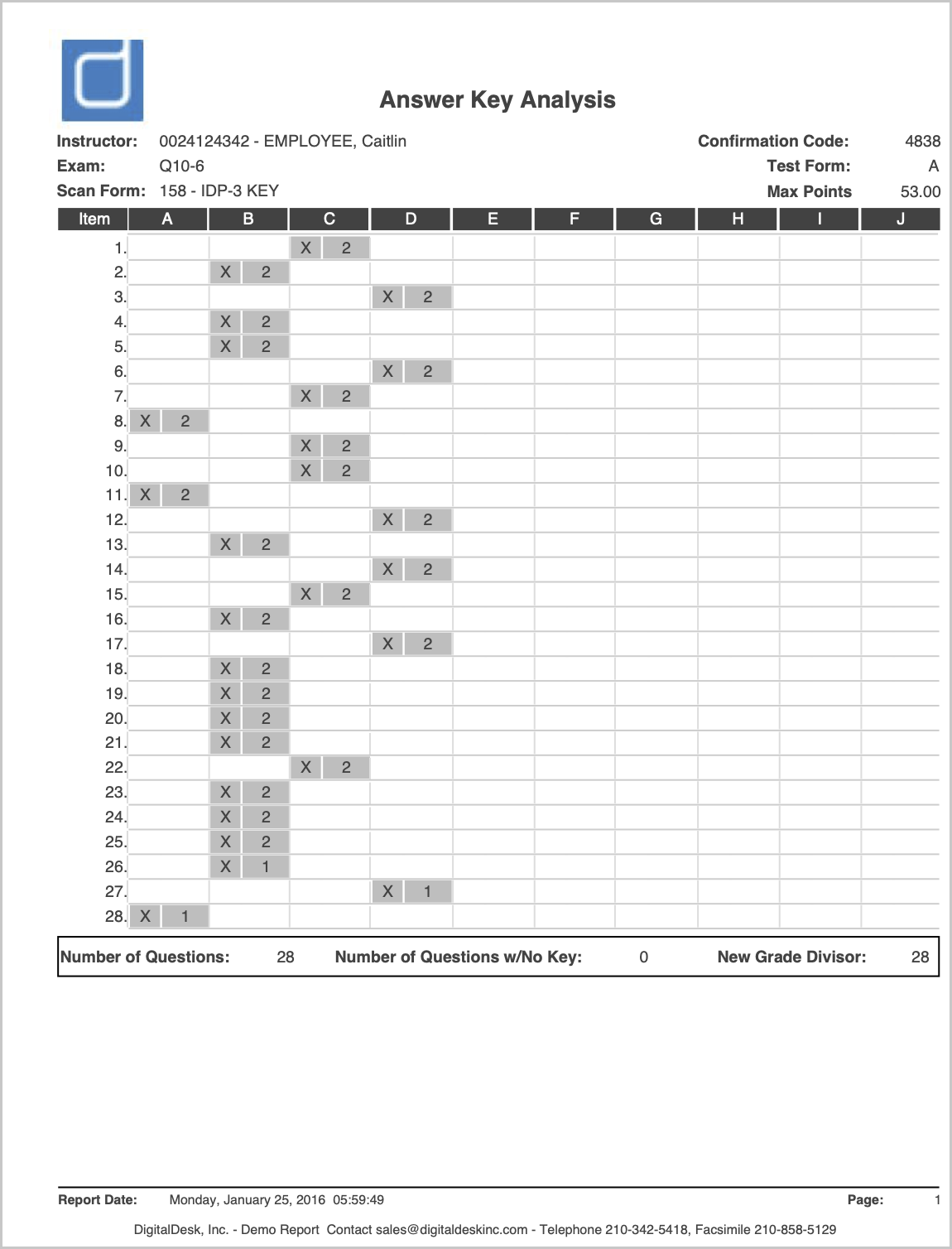
The Answer Key Analysis Report displays the correct answer for each question alongside a breakdown of how students responded. For every question, the report shows the number and percentage of students who selected each answer choice, making it easy to identify questions that were well understood, frequently missed, or potentially confusing.

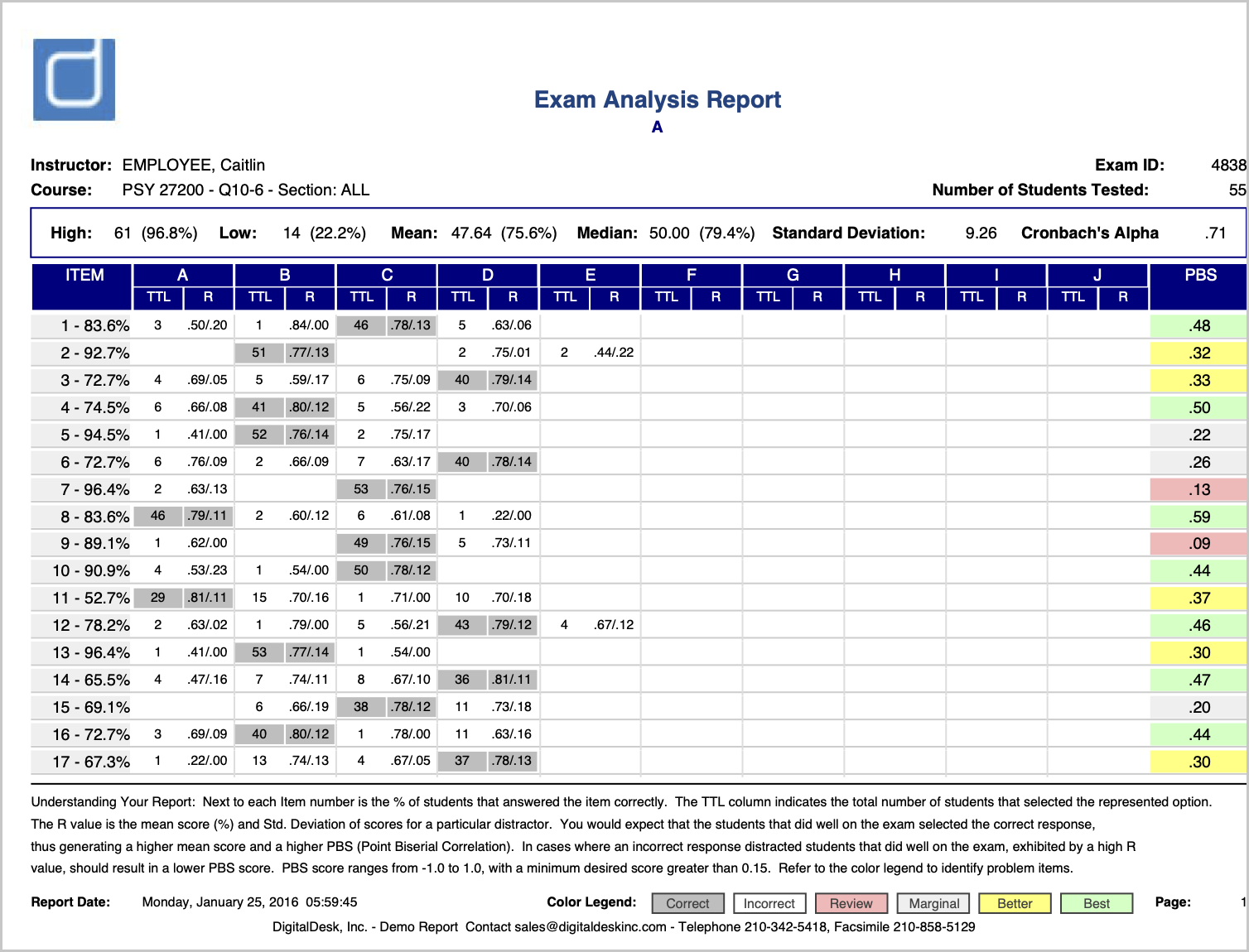
The Exam Analysis Report provides a comprehensive statistical analysis of exam performance, expanding on the information available in the Answer Key Analysis Report. In addition to showing response distributions for each question, it includes advanced assessment metrics such as standard deviation, Cronbach's alpha, point-biserial correlation, distractor analysis, and other measures used to evaluate exam reliability and question effectiveness.

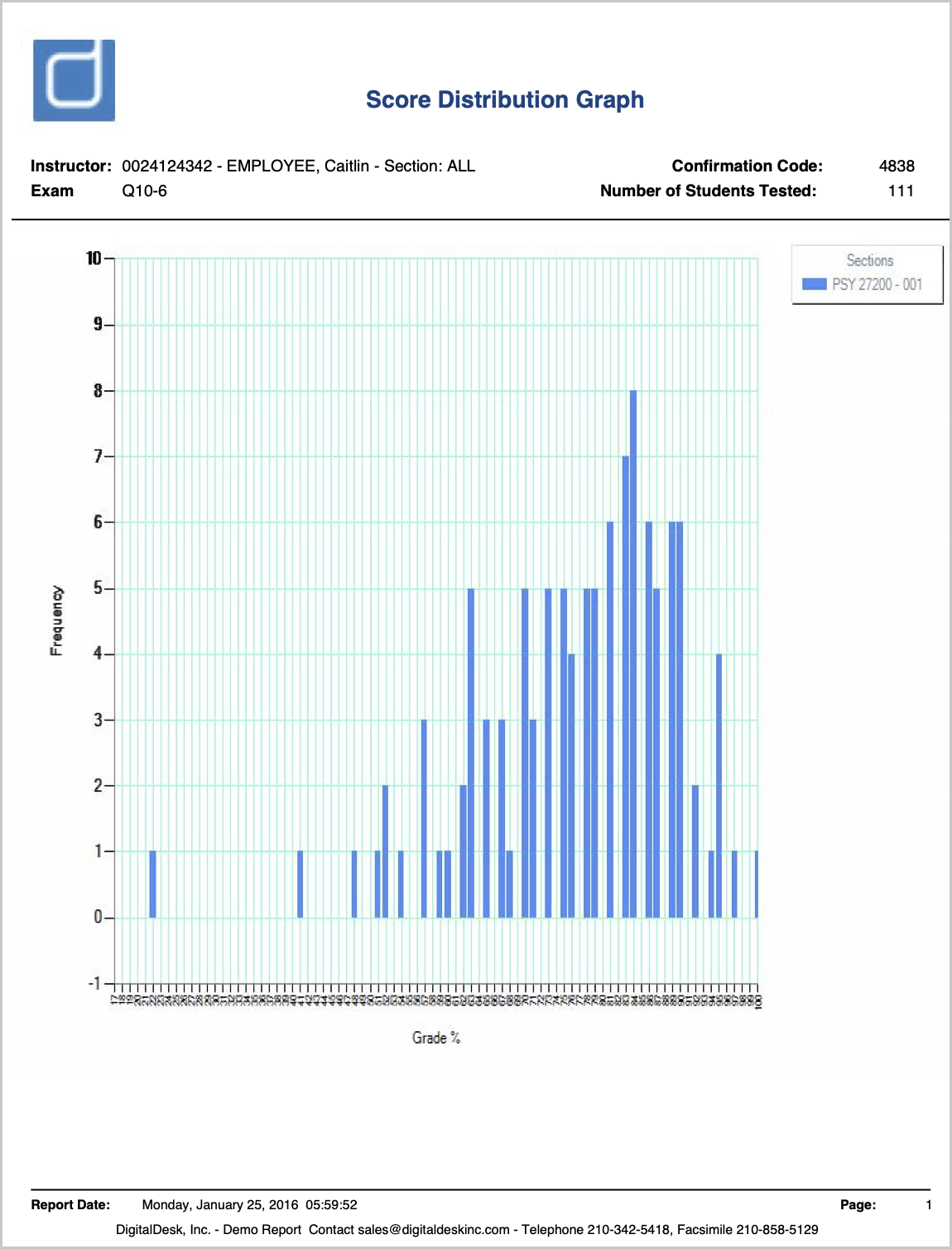
The Score Distribution Report displays a bar graph showing the distribution of exam scores across the class. This visual summary helps instructors quickly see how scores are spread, identify performance trends, and determine whether results are concentrated within a particular score range.


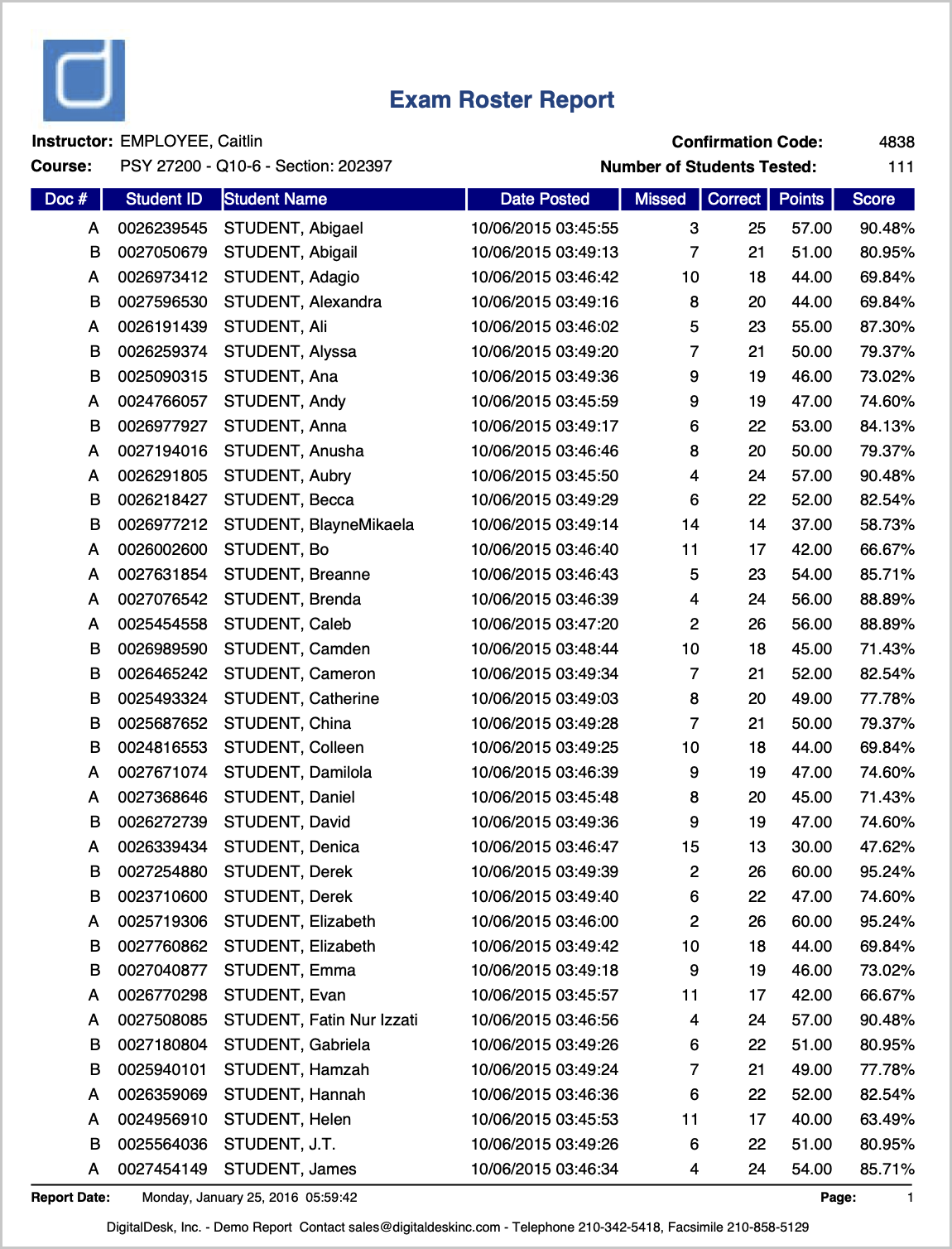
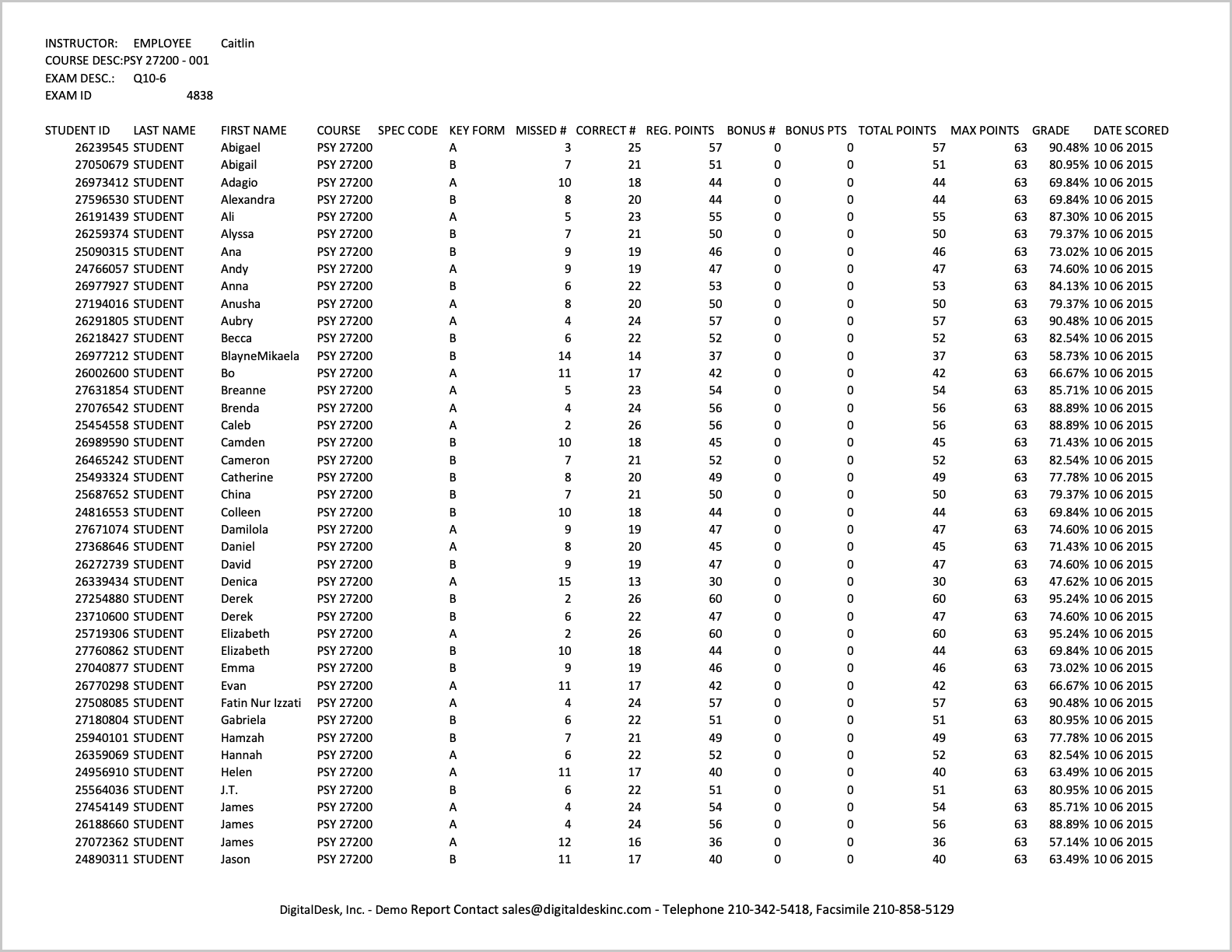
The Roster Report provides a complete class roster with exam results for each student. For every student, the report displays the number of questions answered correctly, the number missed, total points earned, and the final score as a percentage.

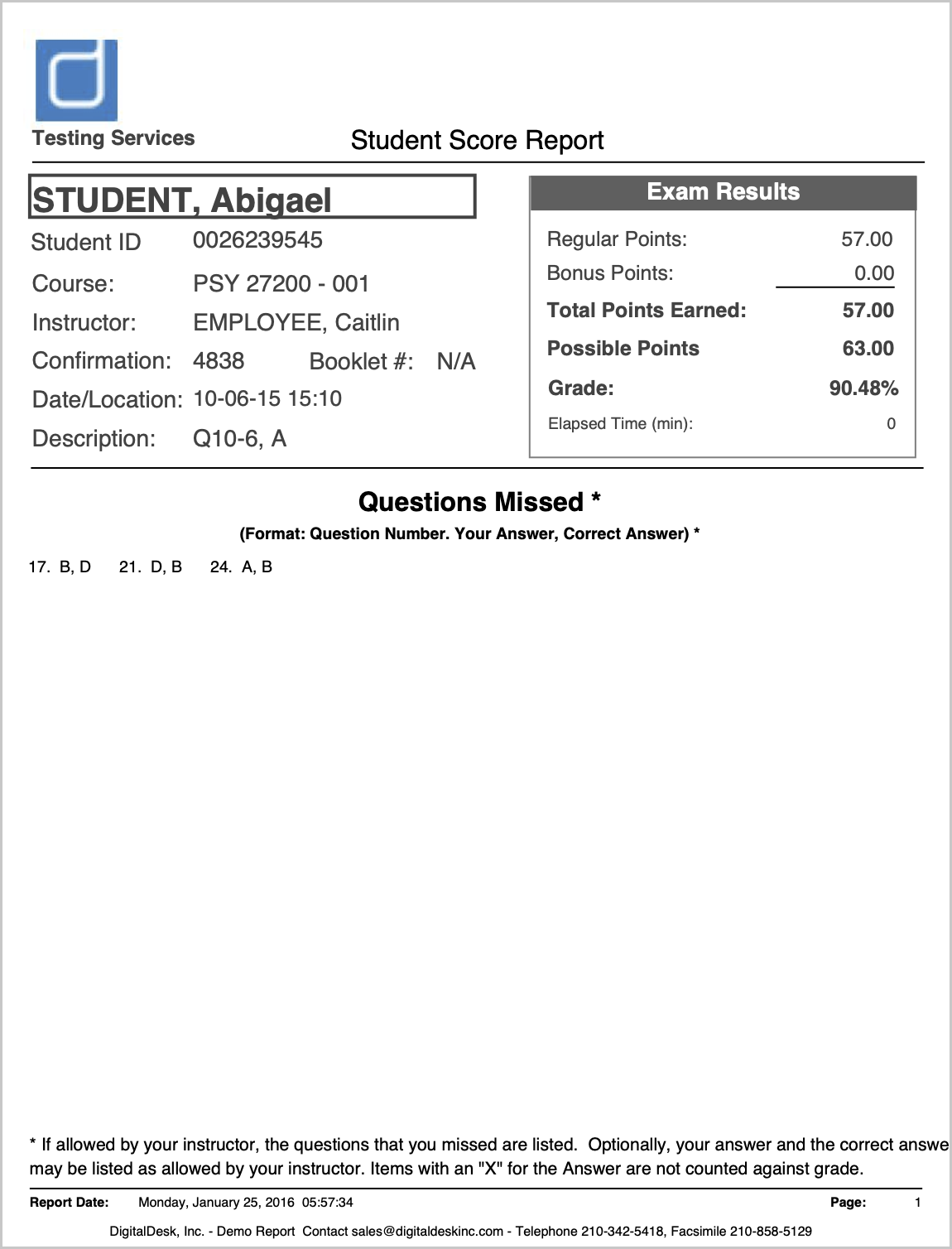
The Student Score Report generates an individual score report for each student and includes customizable display options to control the information shown. Instructors can use this report to review or share detailed exam results on a student-by-student basis.

CSV Exports allow instructors to export exam results to a comma-separated values (CSV) file for additional analysis in spreadsheet applications such as Microsoft Excel.


Need Assistance?

For any questions related to Scantron testing, please call us at 305-284-2450 or email us at testeval@miami.edu.

Top